


Trade Bot Для ARENA BREAKOUT
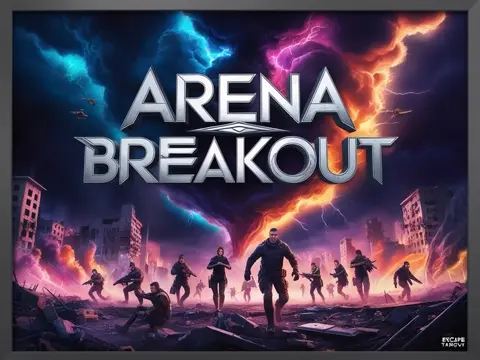
Arena Breakout
Description
Trade Bot for ARENA BREAKOUT – automate trading on the stock exchange
In ARENA BREAKOUT, the in-game exchange allows you to buy and sell equipment, medicines, weapons, and resources. But manual trading takes hours: you need to track prices, set lots, and compete with other players. The Trade Bot for ARENA BREAKOUT fully automates this process. The bot analyzes the market, buys out cheap positions and resells them expensively, and executes your trading strategies 24/7.
Media
System Requirements
Additional requirements: The resolution of the game window is 1920 x 1080 , the game language is English
Supported game modes: Frameless, Windowed
Supported Processors: Intel & Amd
Supported systems: Windows 10 , 11

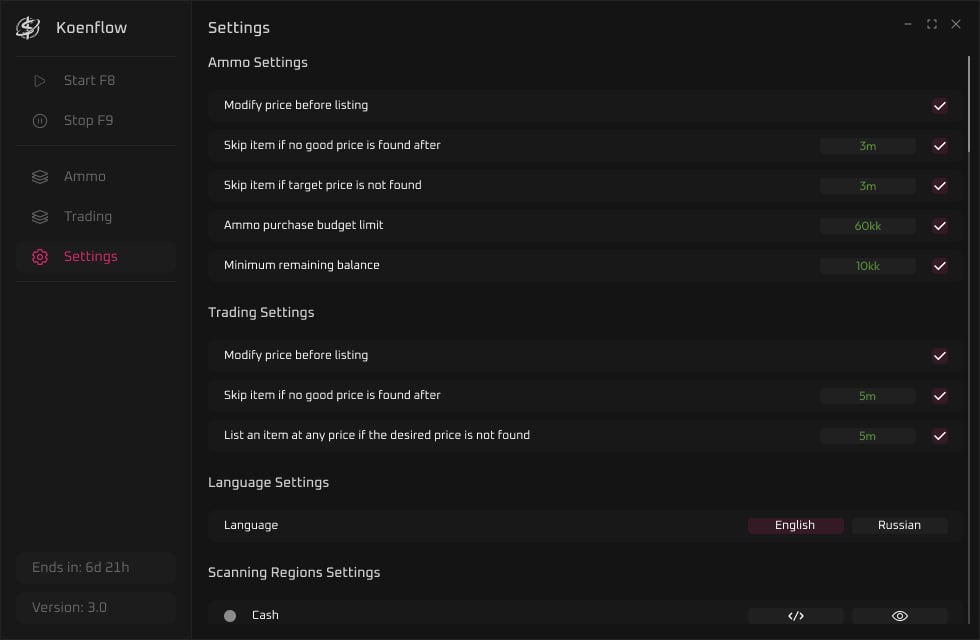
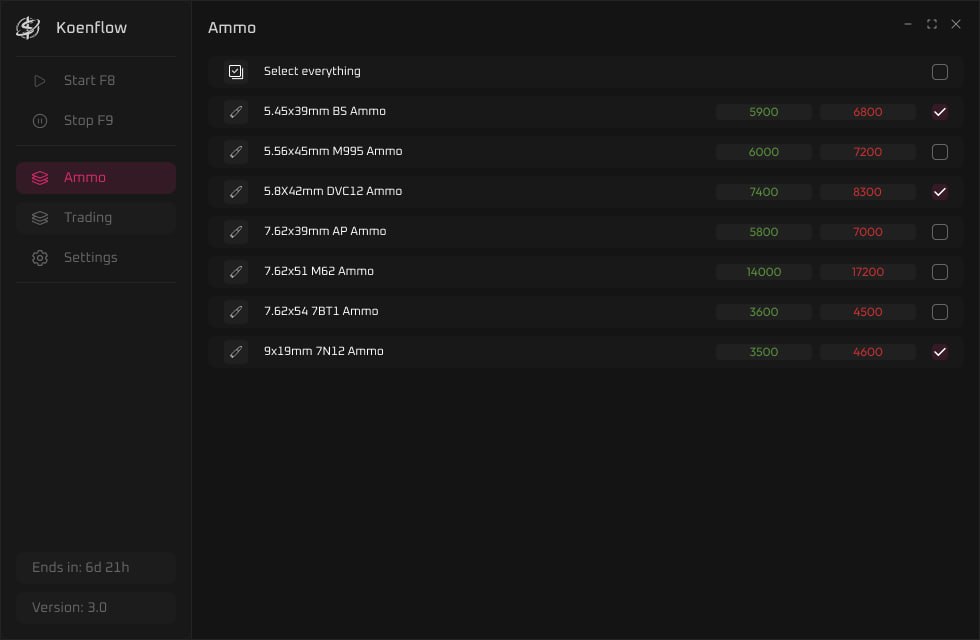
All current functionality is below, screenshots and product descriptions above may differ from this list of functions.
CHECKOUT
Select the desired subscription plan
Don't like the commission? No suitable payment methods? Can't launch the cheat? Need a discount?
No problem! Click the button and write to the administrator who will solve any issue.
 Ask a question
Software for automatic trading on the market. Analyzes offers, finds profitable positions, automatically buys at a low price and sells for more.
It works completely autonomously — you can leave it overnight and make a steady profit.
Example: it is possible to earn from +8kk of in-game currency per night.
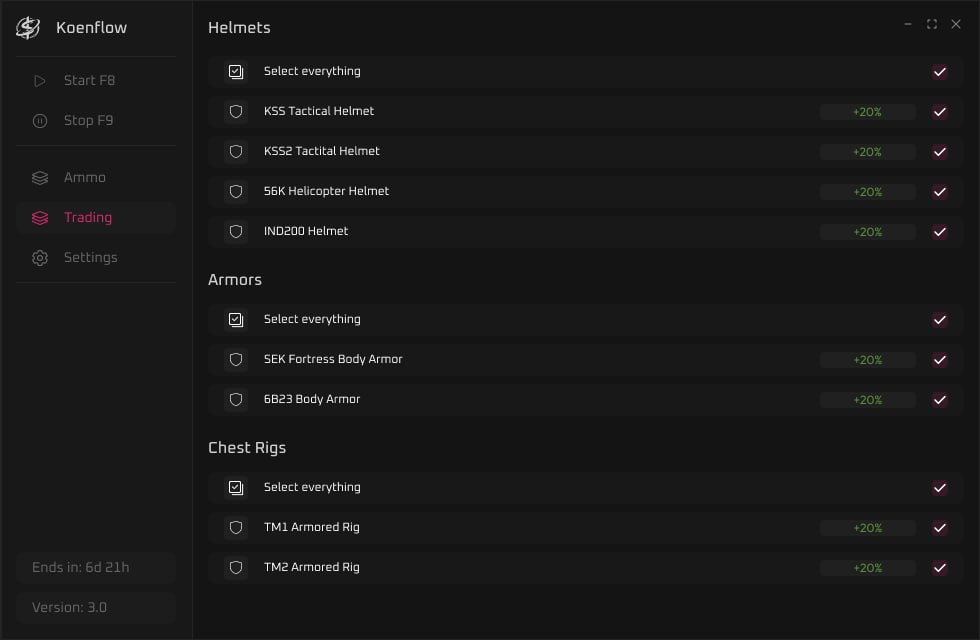
Automatic purchase and sale of items
Market analysis and search for profitable offers
Setting up trading parameters (limits, categories, filters)
Support and updates
Fully automated process
Saving time
Stable farming of in-game currency
Easy launch and setup
Suitable for beginners and experienced players
Safe use
Customer Reviews
Instructions
Trade Bot
05.05.26